WAVE.VIDEO: TOOLS TO CREATE FREE ONLINE VIDEOS FOR MARKETING, SOCIAL MEDIA, BLOG & WEBSITE ADS, CONTENTS PROMOTION, FASTER, SIMPLE, AND EASY.
People use video online for different things, you might own a website or blog or own an e-commerce store and you sell products. You need online videos to promote your goods and services to get online audience.
Video content has a lot of benefits, it is going to help your videos get a lot of audience and they will have interest in what you promote online.
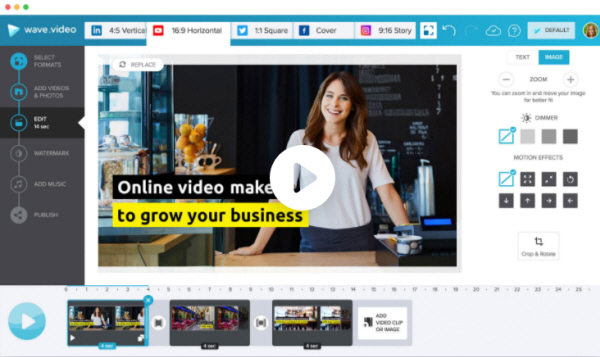
First step: you’ll choose the video format you want. There are different formats you can select.
You just pick the one you want, If you are using a free account you get the horizontal (16:9) and Square which is (1:).
If you want to share the videos on social media like Facebook, Twitter, Instagram and then you don’t have to create a long videoe length.
Just create the square and the horizontal those are the basic ones. But if you wish to go for the vertical videos then you go for the premium account. Because it’s only the premium account that can do that for you.

(2) Add Pictures and Videos
If you want to add videos and pictures you want to use,what you have to do is to chose from the video selection Library but you might pay some extra fees. If you pay for it the pictures and videos will be added to the purchased items on this platform.
If you want to Start from the beginning just click on the icon that says “upload to your media files”. Then you click on the button to add it to the list of projects you have on the platform.
(3) The Editing
The editing is the most difficult part on this tool. Not everyone will get this section. If you want to add pictures on this tool, make note that you will trim it and also add watermark.
- You should also add some elements like music and Text. Once you’ve selected your pictures and image, you will find the “controls” at the right side on the page. You can decide that (zoom in or zoom out) on this video, you can trim it or crop it, you can change speed and also “adjust the volume” of the music.
- If you want a part of the video to show, you’ll click on trim icon by the right side of the page.
- You will be taken to another page where you will be able to adjust the video to your own taste. Make sure you concentrate so you are not going to make mistake.
- When you are dome you click on trim to confirm. And you will be taken back to the page where you will edit.
You can also add another video if you wish, you will just click on add video or add image and you will be taken back to the page where you can (purchase images and pictures) and also go through the library.
(4) You publish
When you have finished creating your videos make sure you review it for at least 1 minute to know if it’s perfectly compressed. And also check if it has any error. Take note of that before you publish it.